

Edit Permissions
All the Members of your Organisation should have a particular Role in our system. It enables the management of access limits and functional possibilities.
We provide four Default roles with the configured access scope.
Default roles
Each Role has a preview boxes with Permissions scope. Thus, you can view the applied Permissions scope, yet you cannot alter it when dealing with System roles.
- We allow you to choose among four Default roles in our system:
| Role | Permissions |
| Viewer | Can only view data presented within the account, but cannot make any updates in any fields. |
| Manager | Can manage company data and update business settings. |
| Administrator | Full access without the ability of modifying the Owner. |
| Owner | Full access with no restrictions. |
- You can also create a Custom role and set your access abilities or restrictions.
- Go to Administration settings, choose the Roles tab and click Add a new role in the top right corner.
- Enter the Name and Description.
- You can configure a new role with permissions from an existing one. Click the switch icon and choose the Role you want to copy the permissions from.
- To enter the permissions manually, go to the Roles tab and choose the role you previously created. Click the edit icon, then apply the permissions by selecting the relevant checkboxes.
- You can also view or change the Permissions scope in the preview boxes by clicking on the None, Read only or Write boxes accordingly.
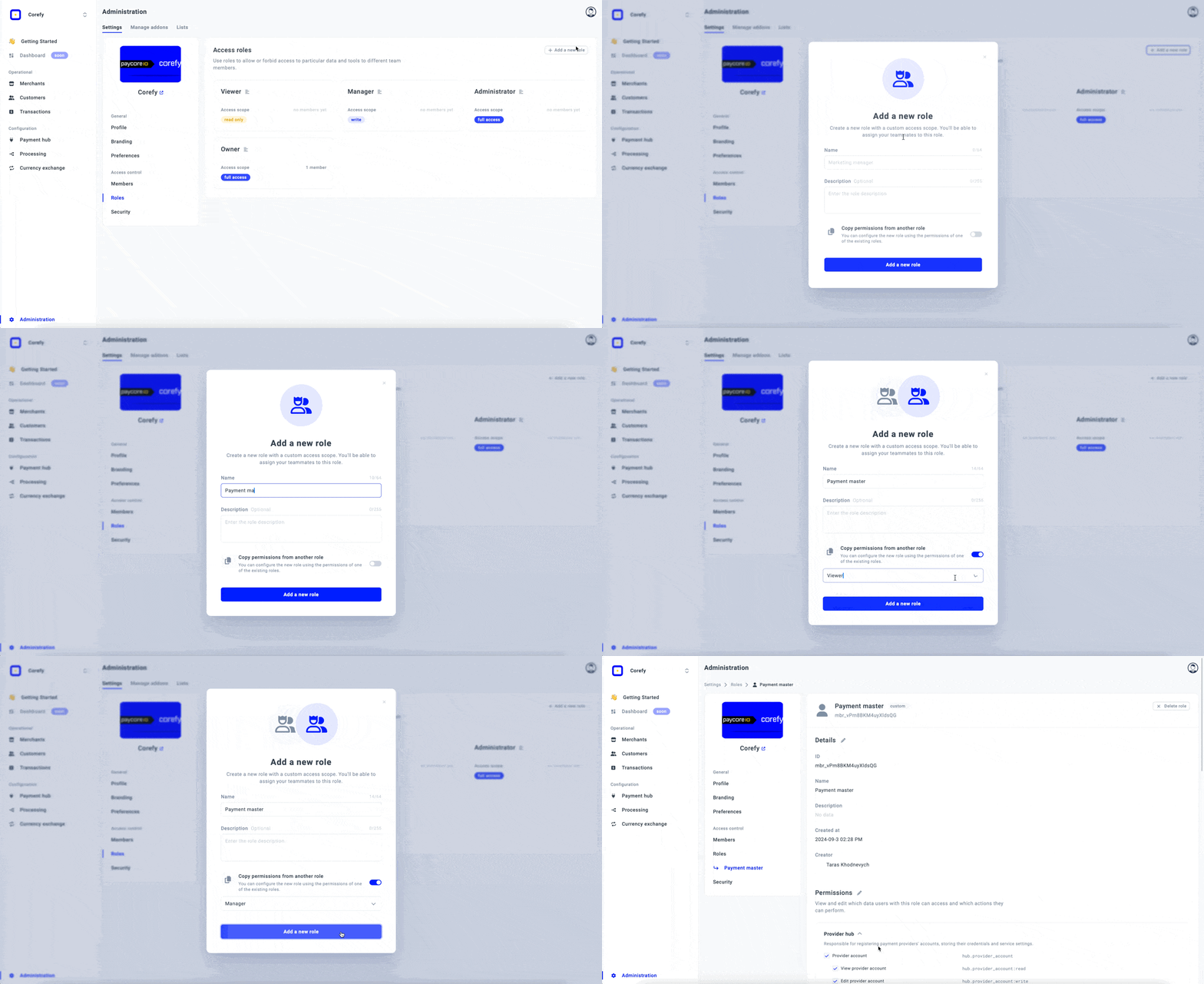
Step 1
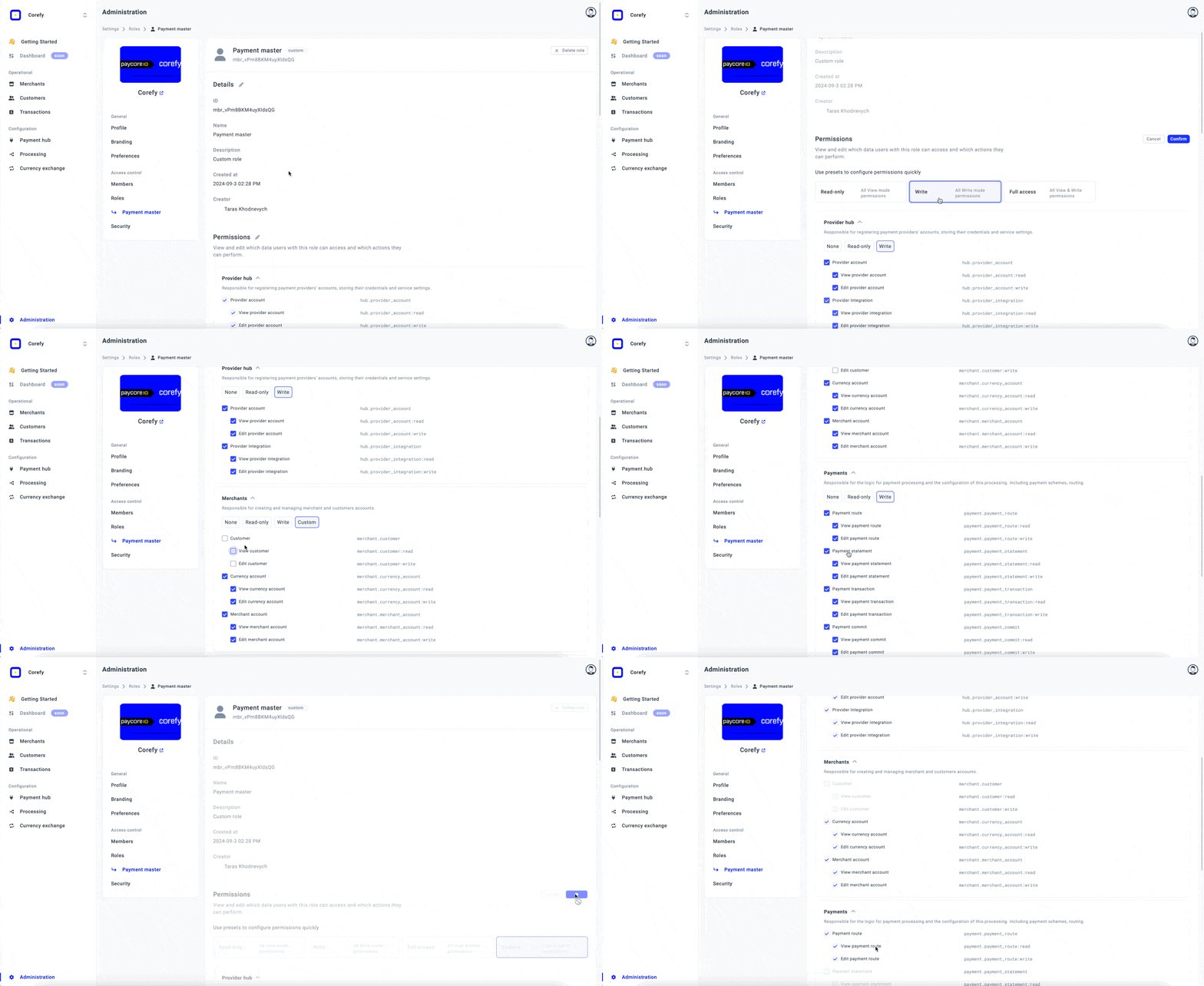
Step 2
Assign a Role
- You can assign a particular role to a user when you invite them to join your Organisation and become a Member.
- In the invite form, choose a Role from the default ones and send the invite.
- When your teammate joins the Organisation, they already have the corresponding access scope.
Update a Role
- You can change the Role of the particular Member in the system.
- Go to Administration settings, choose the Members tab and click the Member name.
- The system redirects you to the Member info page, where you can click the dropdown list, apply and confirm a new Role.
Pass the Owner role to the Administrator
- If you are the Owner of your Organisation but want to grant the Administrator your permissions, go to the info page of the Member who performs the Administrator role and update it.
- Be aware that when you pass the Owner role, you become the Administrator yourself. You cannot regain the Owner permissions unless the new Owner passes this Role back to you.
Permissions per each Role
| Entity | Actions | Owner (Full access) |
Administrator (Full access) |
Manager (Write) |
Viewer (Read only) |
|---|---|---|---|---|---|
| Organisation | |||||
| Getting started checklist | View | ✅ | ✅ | ✅ | ✅ |
| Edit | ✅ | ✅ | ✅ | ❌ | |
| Provider hub | |||||
| Provider account | View | ✅ | ✅ | ✅ | ✅ |
| Edit | ✅ | ✅ | ✅ | ❌ | |
| Provider integration | View | ✅ | ✅ | ✅ | ✅ |
| Edit | ✅ | ✅ | ✅ | ❌ | |
| Merchants | |||||
| Customer | View | ✅ | ✅ | ✅ | ✅ |
| Edit | ✅ | ✅ | ✅ | ❌ | |
| Merchant account | View | ✅ | ✅ | ✅ | ✅ |
| Edit | ✅ | ✅ | ✅ | ❌ | |
| Payments | |||||
| Payment route | View | ✅ | ✅ | ✅ | ✅ |
| Edit | ✅ | ✅ | ✅ | ❌ | |
| Payment Transaction | View | ✅ | ✅ | ✅ | ✅ |
| Edit | ✅ | ✅ | ✅ | ❌ | |
| Payment Commit | View | ✅ | ✅ | ✅ | ✅ |
| Edit | ✅ | ✅ | ✅ | ❌ | |
| Payment Request | View | ✅ | ✅ | ✅ | ✅ |
| Edit | ✅ | ✅ | ✅ | ❌ | |
| Payment scheme | View | ✅ | ✅ | ✅ | ✅ |
| Edit | ✅ | ✅ | ✅ | ❌ | |
| Payout Request | View | ✅ | ✅ | ✅ | ✅ |
| Edit | ✅ | ✅ | ✅ | ❌ | |
| Payout Commit | View | ✅ | ✅ | ✅ | ✅ |
| Edit | ✅ | ✅ | ✅ | ❌ | |
| Payout Transaction | View | ✅ | ✅ | ✅ | ✅ |
| Edit | ✅ | ✅ | ✅ | ❌ | |
| Rate schemes | |||||
| Rate scheme | View | ✅ | ✅ | ✅ | ✅ |
| Edit | ✅ | ✅ | ✅ | ❌ | |
| Rate scheme rule | View | ✅ | ✅ | ✅ | ✅ |
| Edit | ✅ | ✅ | ✅ | ❌ | |
| Merchant portal add-on | |||||
| Merchant portal configuration | View | ✅ | ✅ | ✅ | ✅ |
| Edit | ✅ | ✅ | ✅ | ❌ | |
| Merchant portal account settings | View | ✅ | ✅ | ✅ | ✅ |
| Edit | ✅ | ✅ | ✅ | ❌ | |
| Firewall add-on | |||||
| Firewall rule | View | ✅ | ✅ | ✅ | ✅ |
| Edit | ✅ | ✅ | ✅ | ❌ | |
Updated about 1 month ago
Did this page help you?