

Create Custom Fee rules
Custom Fee rules allow you to define additional Fee configurations for specific transaction scenarios based on predefined conditions. They provide flexibility beyond the default Base fee, enabling different Fees to be applied depending on the transaction attributes and business requirements.
Each Custom Fee rule can override the Simple rate-only or Advanced multi-currency Base fee configuration when its conditions are met. If no Custom Fee rule matches the transaction conditions, the system uses the configured Base fee as a fallback.
Custom Fee rules cannot exist independently of a Base fee. A Base fee configuration is always required to ensure that a default Fee is available when no specific Rule applies. Custom Fee rules can be created and managed only when Fee availability is enabled for the Payment or Payout method.
Create Custom Fee rule
- Go to Processing and choose the Payment scheme you previously created on the grid.
- Navigate to the Payment methods or Payout methods tab of the specific Payment scheme. Click the particular Method on the grid.
- Navigate to the Fees tab.
- Switch on the Fee availability toggle.
- Then, set up a Base fee as a fallback. To learn more, go to the Add Base fee guide.
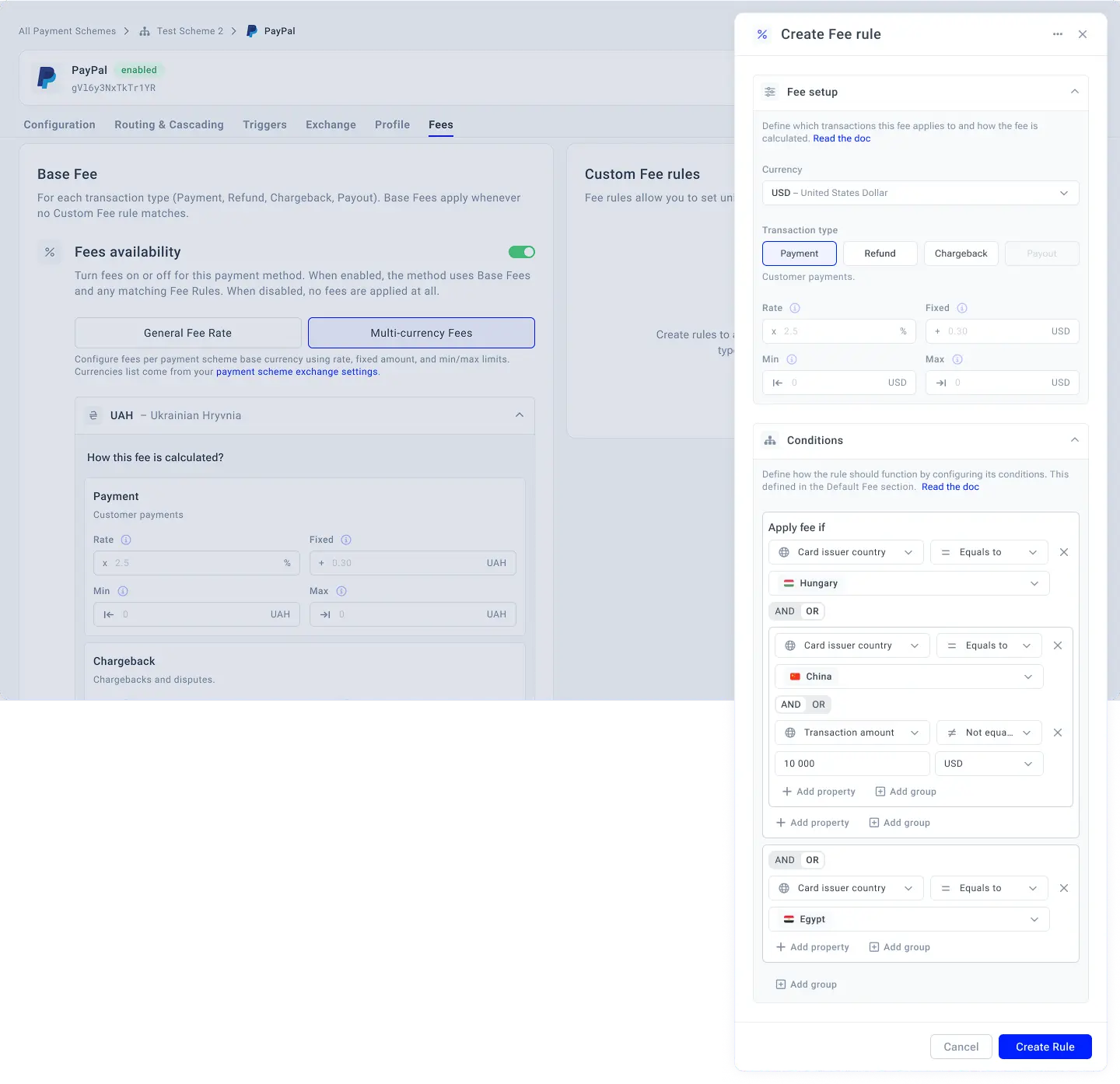
- Click Create Fee rule.
- Select the preferred Currency.
- Specify the Transaction type.
- Insert the values for the corresponding fields: Rate, Fixed, Min, and Max.
Build a Condition
- Each Rule specifies the condition, which consists of three parts: the Condition attribute, Operator and Value field.
- Select the Condition attribute from the following ones:
| Condition | Description |
|---|---|
| Currency | Defines the currency of the transaction used to determine whether the Custom Fee rule applies. |
| Transaction type | Specifies the type of transaction to which the Custom Fee rule applies, such as Payment, Refund, Chargeback, or Payout, depending on the Method. |
| Card issuer country | Defines the country where the card issuer is located, allowing the Rule to apply to transactions made with cards issued in a specific country. |
| Transaction amount | Specifies the transaction amount or amount range used to determine whether the Custom Fee rule applies. |
| Card network | Defines the card network used to process the transaction, such as Visa or Mastercard, allowing the Rule to apply to transactions processed through a specific network. |
| Card brand | Specifies the card brand associated with the payment card, allowing the Rule to apply to transactions made with a particular card brand. |
- Select the Operator after analysing the corresponding Attribute & Operator matrix:
| Operator → Attribute ↓ |
Equals to | Not equal to | Equals any of | Not equal any of | Greater than | Greater or equal | Less than | Less or equal |
| Currency | ✅ | ✅ | ✅ | ✅ | ❌ | ❌ | ❌ | ❌ |
| Transaction type | ✅ | ✅ | ✅ | ✅ | ❌ | ❌ | ❌ | ❌ |
| Card issuer country | ✅ | ✅ | ✅ | ✅ | ❌ | ❌ | ❌ | ❌ |
| Transaction amount | ✅ | ✅ | ❌ | ❌ | ✅ | ✅ | ✅ | ✅ |
| Card network | ✅ | ✅ | ✅ | ✅ | ❌ | ❌ | ❌ | ❌ |
| Card brand | ✅ | ✅ | ✅ | ✅ | ❌ | ❌ | ❌ | ❌ |
- To build more advanced Rules, click Add group and establish additional Conditions.
- Then, click Create Rule.
Manage Custom Fee rule
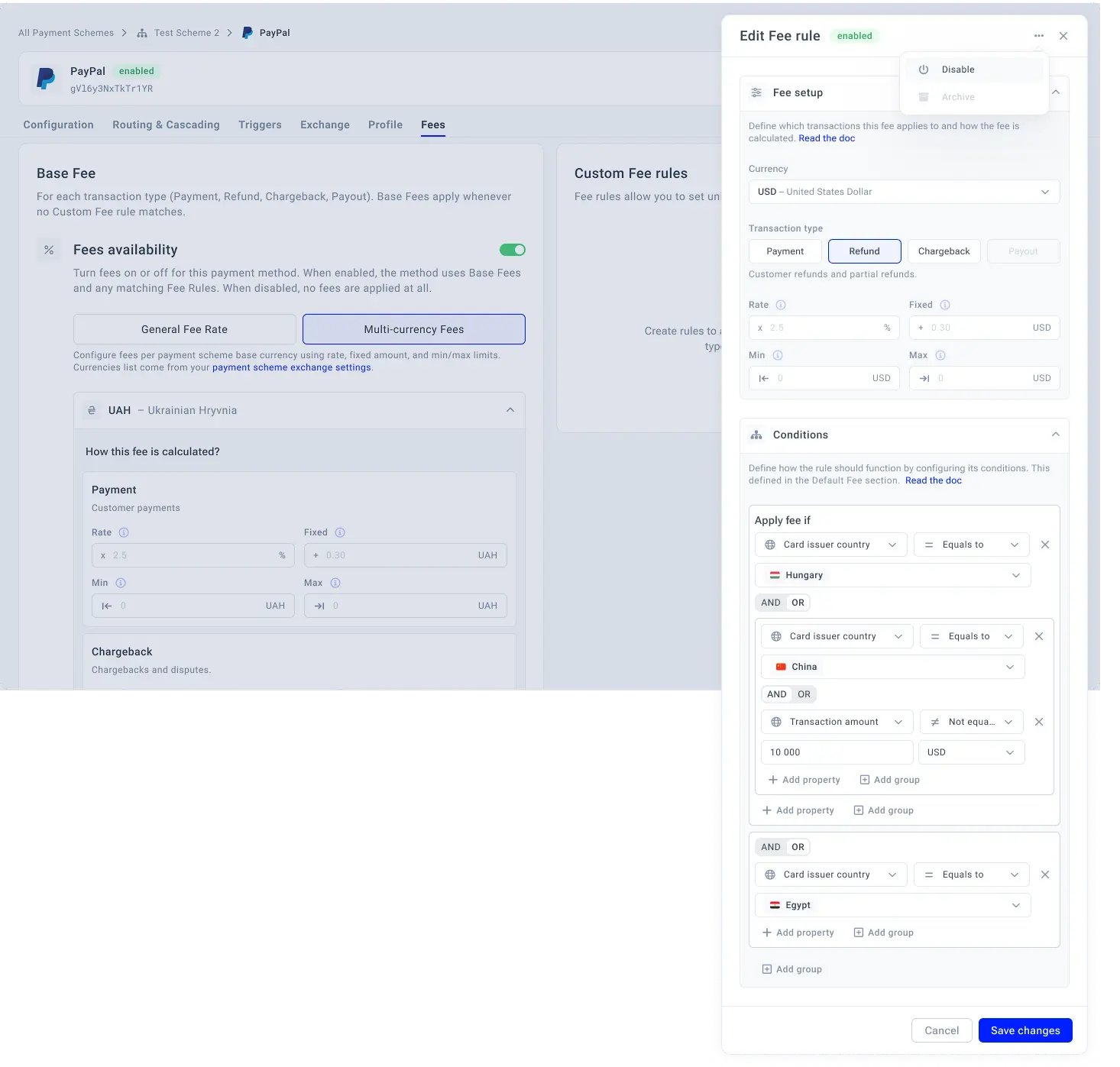
- Click the specific Rule on the grid.
- The system opens a drawer with the Rule information.
- To update the Rule, click the options icon and select Edit. After updating the Rule, click Save changes.
- If you no longer need a specific Rule, select the Disable or Archive option correspondingly.
Updated about 6 hours ago